Model Context Protocol (MCP) - AI 跟您的應用程式一起通訊

正式文件告訴我們,MCP 是一個開放原始碼標準,允許將 AI 應用程式與外部系統連接。
這意味著,如果您或您的公司擁有一個 MCP 伺服器,那麼 AI 應用程式可以呼叫它來擷取(或寫入)由您的系統直接公開的資料。這可以讓使用者直接在他們的聊天中履行行動(如搜尋),同時 LLM 連接到外部服務。
我們可以想像一個使用者正在為他們的下一趟旅行尋找住宿,而 AI 因此連接到各種線上服務的不同 MCP 伺服器,以擷取並顯示可用的選項。
MCP 伺服器向它的用戶端公開功能。用戶端將能夠呼叫伺服器上的工具,也可以透過呼叫資源以唯讀模式擷取資料。
要建立 MCP 伺服器,我們將使用 Typescript SDK(文件)。
專案
在新的資料夾中:
npm init -y# 修改專案類型以使用 ES 模組npm pkg set type="module"# 安裝開發依賴npm i --save-dev tsx typescript @types/nodepackage.json 檔案
在 package.json 檔案中,新增一個腳本來執行 src/index.ts 檔案:
{ "name": "mcp-server-intro", "version": "1.0.0", "description": "", "scripts": { "dev": "tsx src/index.ts" //... } //...}Typescript 組態
關於 tsconfig.json 檔案,我們可以手動建立它,或使用 npx tsc --init 產生它,然後修改內容:
{  "compilerOptions": {    "module": "nodenext",    "target": "esnext",    "types": ["node"],
    "sourceMap": true,    "declaration": true,    "declarationMap": true,
    "noUncheckedIndexedAccess": true,    "exactOptionalPropertyTypes": true,
    "strict": true,    "jsx": "react-jsx",    "verbatimModuleSyntax": true,    "isolatedModules": true,    "noUncheckedSideEffectImports": true,    "moduleDetection": "force",    "skipLibCheck": true  }}
Typescript MCP SDK
要建立我們的 MCP 伺服器,我們將使用 @modelcontextprotocol SDK:
npm i @modelcontextprotocol/sdk然後,建立 src/index.ts 檔案:這是我們將建立 MCP 伺服器及其將公開的工具的地方。
伺服器與傳輸
在 SDK 中,我們找到一個 McpServer 類別,因此我們可以建立此類別的物件。建構子接受一個包含有用屬性的物件:name、title、version、capabilities,以及說明(instructions),這些說明描述伺服器的功能以及如何使用它。
在主函式中,我們將建立一個 StdioServerTransport 傳輸物件。STDIO 傳輸允許在本機使用 MCP 伺服器:它在用戶端和本機 MCP 伺服器之間使用標準輸入/輸出(STDIO)。如果我們需要一個線上伺服器,讓多個用戶端可以連接到它,我們將使用 SSEServerTransport。此傳輸支援 Server Sent Events (SSE),因此它可以向已連接的用戶端發送通知。
然後我們將 MCP 伺服器連接到傳輸:await mcpServer.connect(transport)。
Github 儲存庫上的實作範例:examples
import { McpServer } from "@modelcontextprotocol/sdk/server/mcp.js";import { StdioServerTransport } from "@modelcontextprotocol/sdk/server/stdio.js";
const mcpServer = new McpServer(  {    name: "ld-web",    title: "LD-WEB",    version: "1.0.0",  },  {    instructions: "Fetch informations about web development",  });
async function main() {  const transport = new StdioServerTransport();  await mcpServer.connect(transport);
  console.error("Server running...");}
main().catch((error) => {  console.error("Fatal error in main():", error);  process.exit(1);});
要啟動伺服器,可以使用執行 tsx src/index.ts 的腳本:
npm run dev工具
在 MCP 伺服器中,我們可以註冊工具並使它們可供用戶端使用:
mcpServer.registerTool( // tool name "my-tool", // Discoverable properties { title: "My tool", description: "My first MCP tool !", }, // Tool's execution logic async () => { return { content: [{ type: "text", text: "Output of my tool !" }], }; });MCP Inspector
要測試 MCP 伺服器,我們可以使用 Model Context Protocol 團隊在 Github 上提供的 MCP Inspector。
啟動
從專案根目錄,無需事先啟動 MCP 伺服器,我們將執行 MCP inspector,它將允許我們連接到伺服器,然後探索並執行其工具:
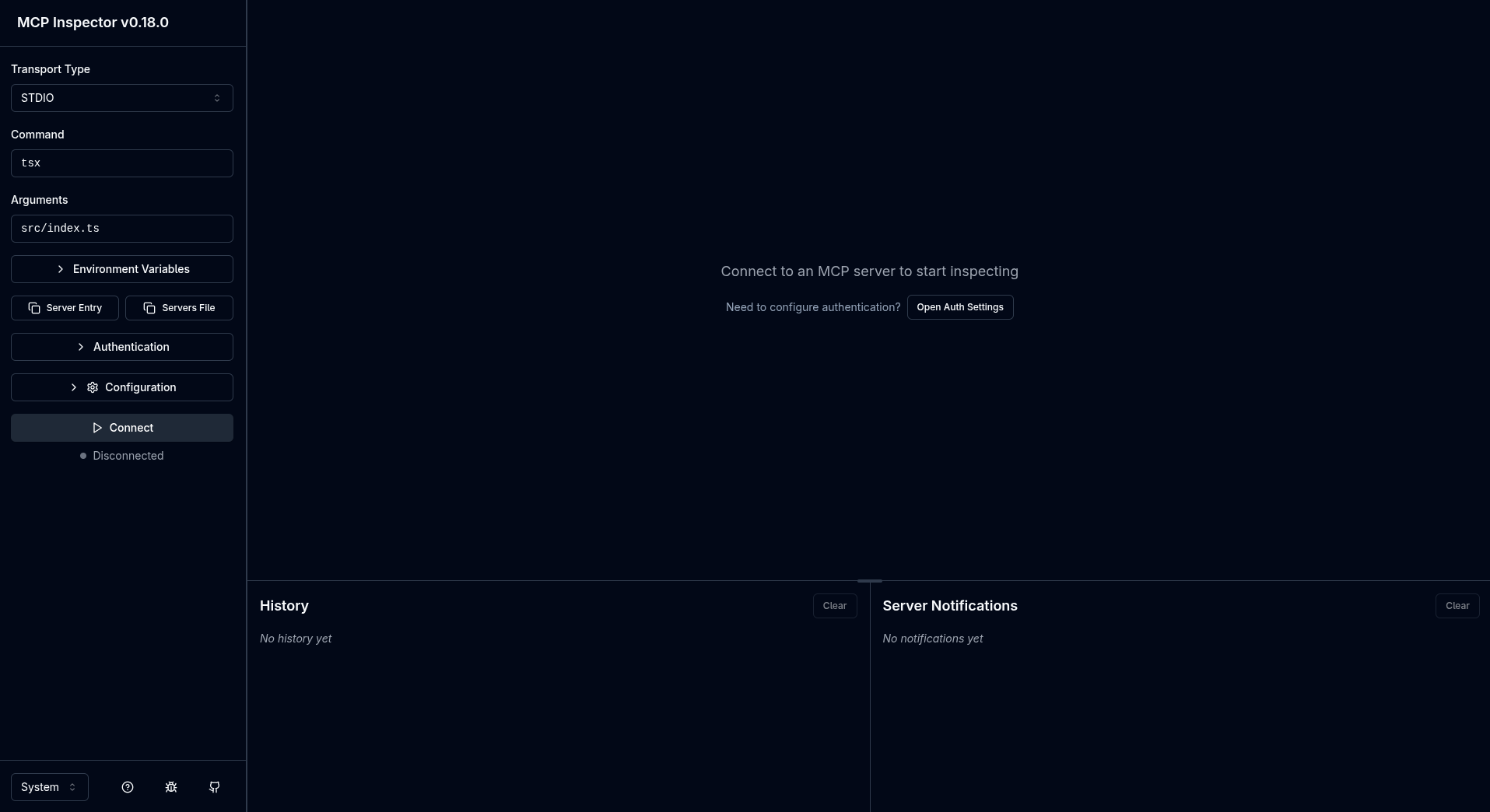
npx @modelcontextprotocol/inspector tsx src/index.ts此指令會在連接埠 6274 上啟動一個網頁介面:
連接
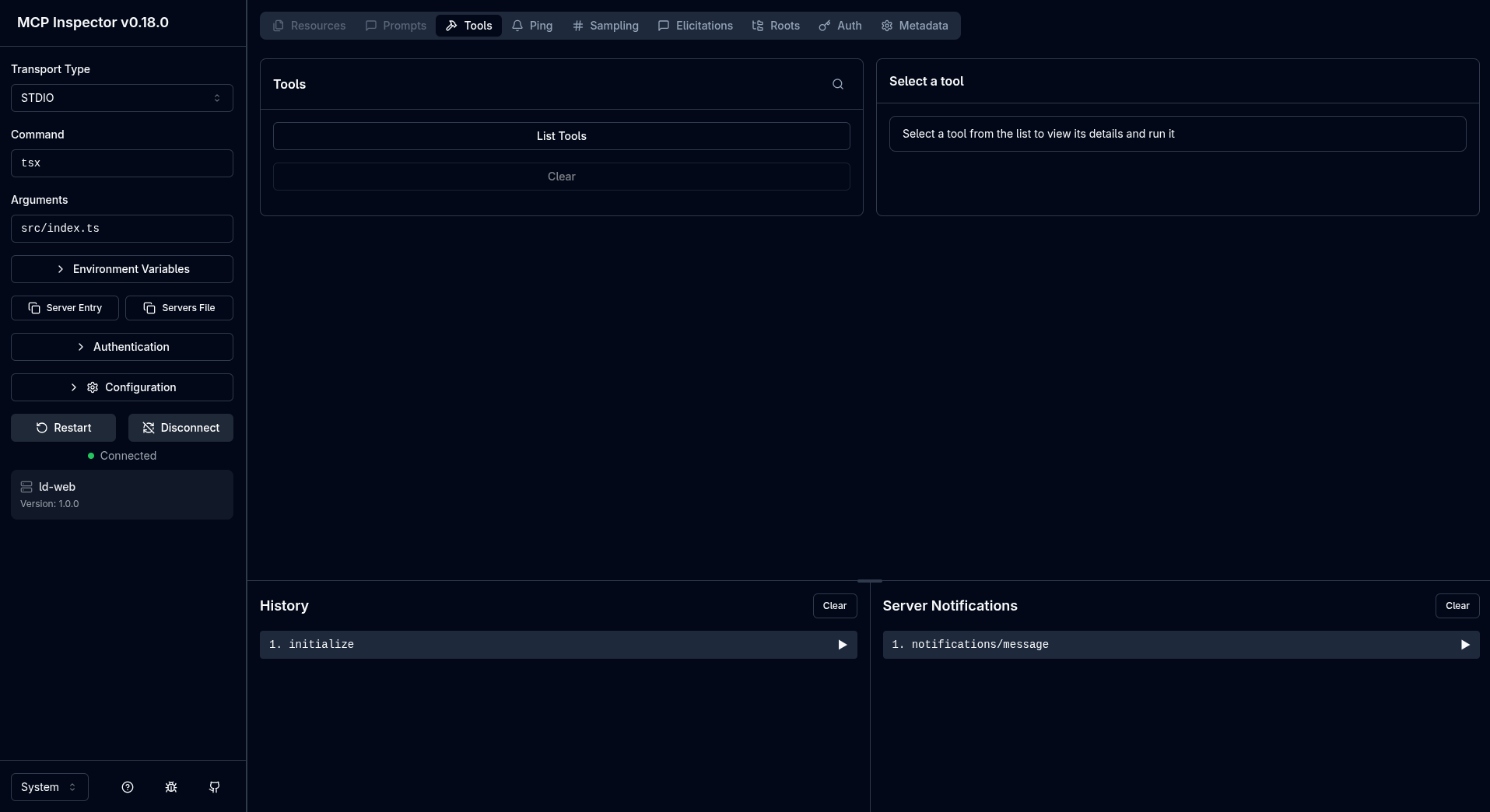
在介面的左側,tsx 指令及其 src/index.ts 引數已經預先填入。傳輸定義為 STDIO,我們可以點選「Connect」。
自動地,inspector 將我們置於「Tools」索引標籤上,並在介面左側指示我們已連接到「ld-web」伺服器:
資訊已從與伺服器的第一次交換中擷取。在記錄中(底部,稍微偏左,「History」),我們找到一個 initialize 元素,如果我們點選它來展開,會顯示 inspector 發出了一個「initialize」要求,而伺服器透過提供有關自身的詳細資訊來回應。
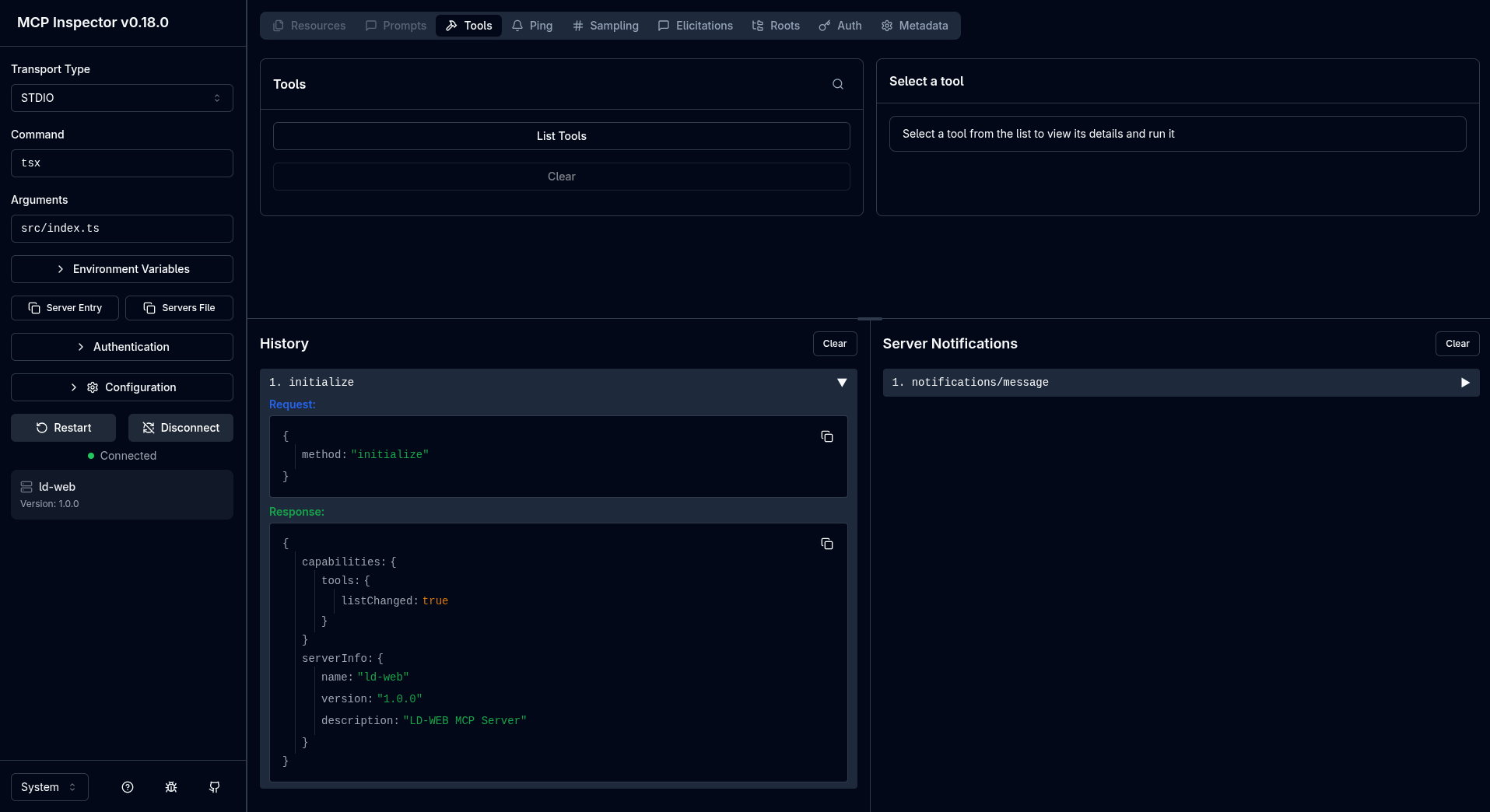
此初始化請求實際上是 MCP 協定定義的交換生命週期中的第一個。
工具執行
現在我們已連接,我們將執行我們為伺服器註冊的工具。目標是在用戶端收到 Output of my tool ! 訊息。
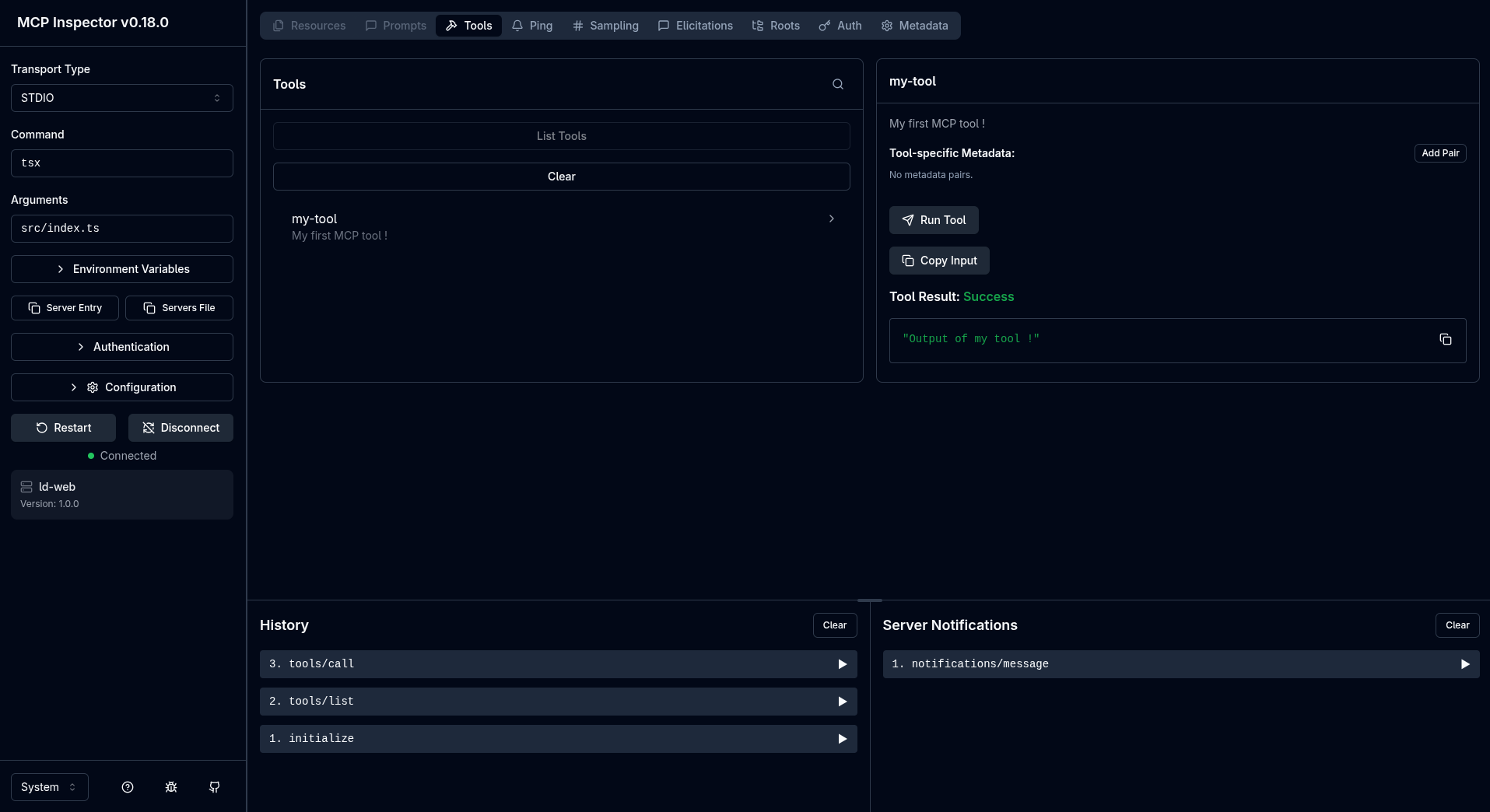
我們可以透過點選「List tools」按鈕來列出工具:
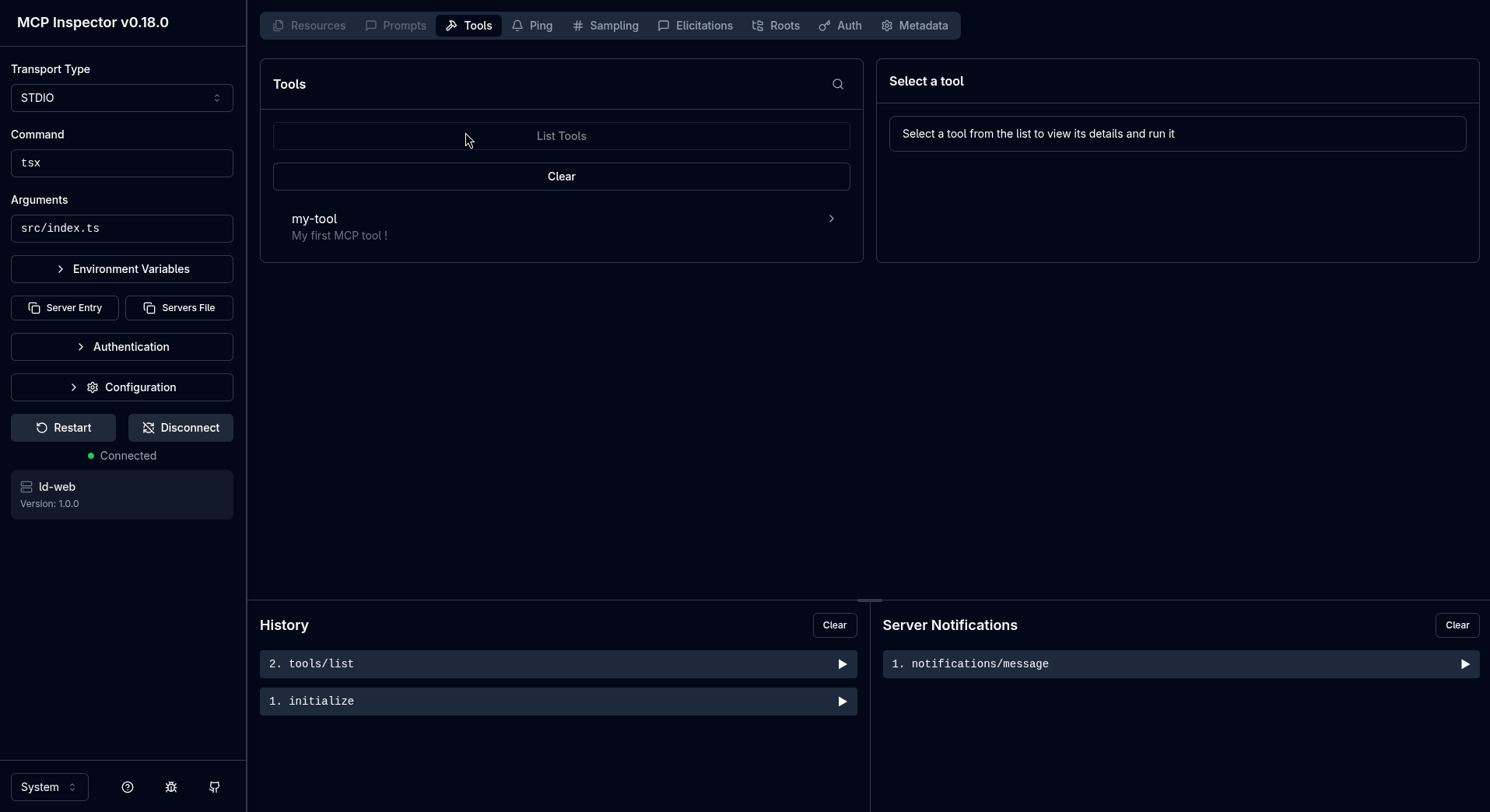
在工具清單中,我們找到我們的工具「my-tool」及其描述,正如我們在原始碼中註冊的那樣。
然後我們點選工具,然後點選「Run tool」按鈕:我們在用戶端獲得工具的執行結果:
引數
可以將引數傳遞給工具。為此,在程式碼中,我們將在工具的宣告中新增 inputSchema 屬性。
此綱要將與 zod 驗證函式庫相容:
mcpServer.registerTool( "my-tool", { title: "My tool", description: "My first MCP tool !", inputSchema: { name: z.string().describe("Name of the person to greet !"), }, }, async ({ name }) => { if (!name) { throw new Error("Name is required"); } return { content: [{ type: "text", text: `Output of my tool, hello ${name} !` }], }; });在函式中,我們擷取在 inputSchema 屬性中宣告的參數:我們現在可以使用由用戶端提供的引數。
在 MCP inspector 中:
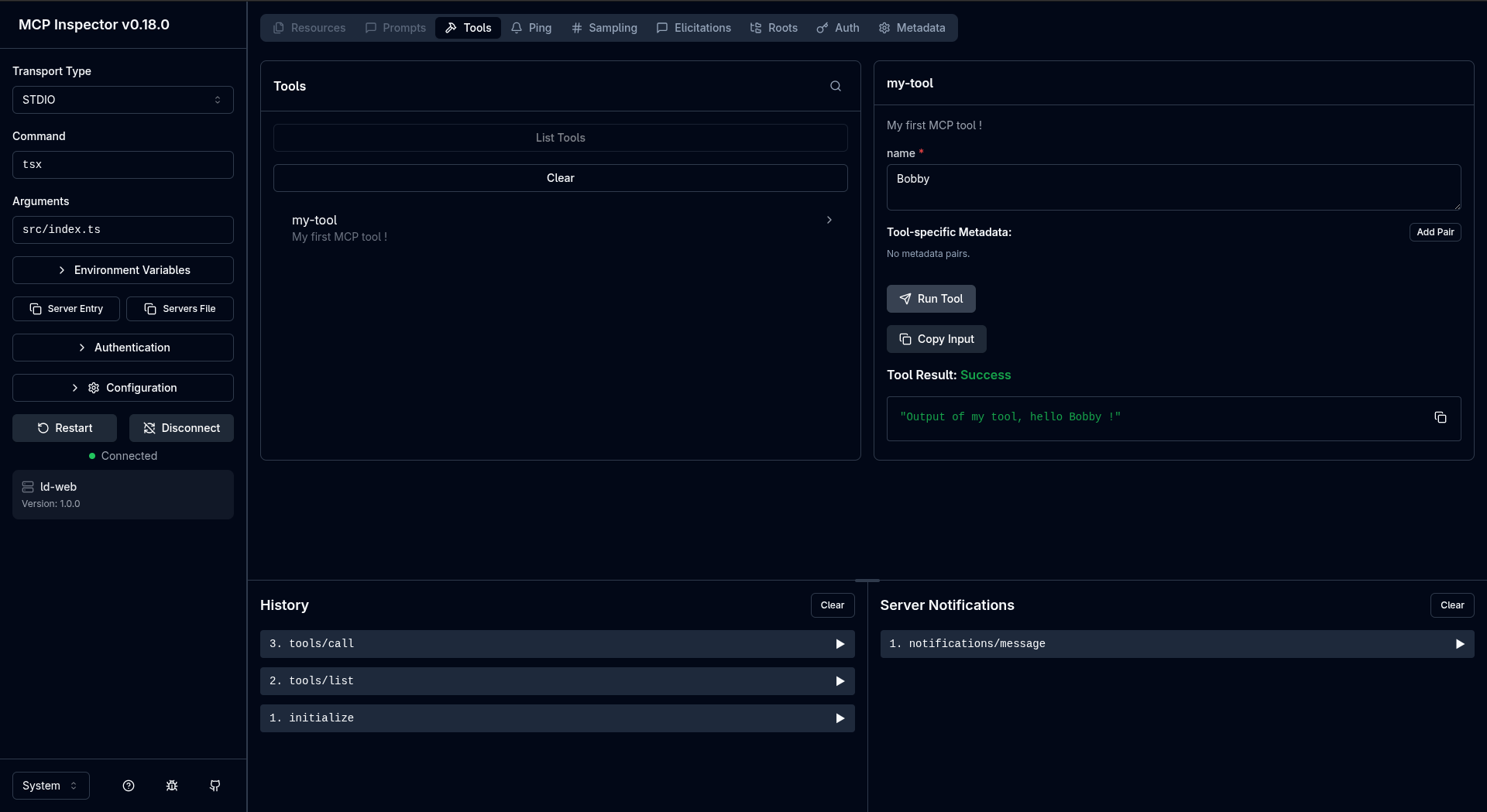
除了打招呼,我們的工具還能夠做更多事情:與資料庫的通訊(讀取和/或寫入)、API 呼叫、檔案系統存取…
Cursor 整合
在像 Cursor 這樣的環境中,我們可以設定一個指向我們本機檔案的新 MCP 伺服器。在組態的「Tools & MCP」區段中,我們可以新增一個新的 MCP 伺服器:
{ "mcpServers": { "ld-web": { "type": "stdio", "command": "npx", "args": ["tsx", "/home/lucas/js/mcp-server-intro/src/index.ts"] } }}一旦 MCP 伺服器已設定並啟用,整合式開發環境將能夠在我們與聊天交換期間直接呼叫它:
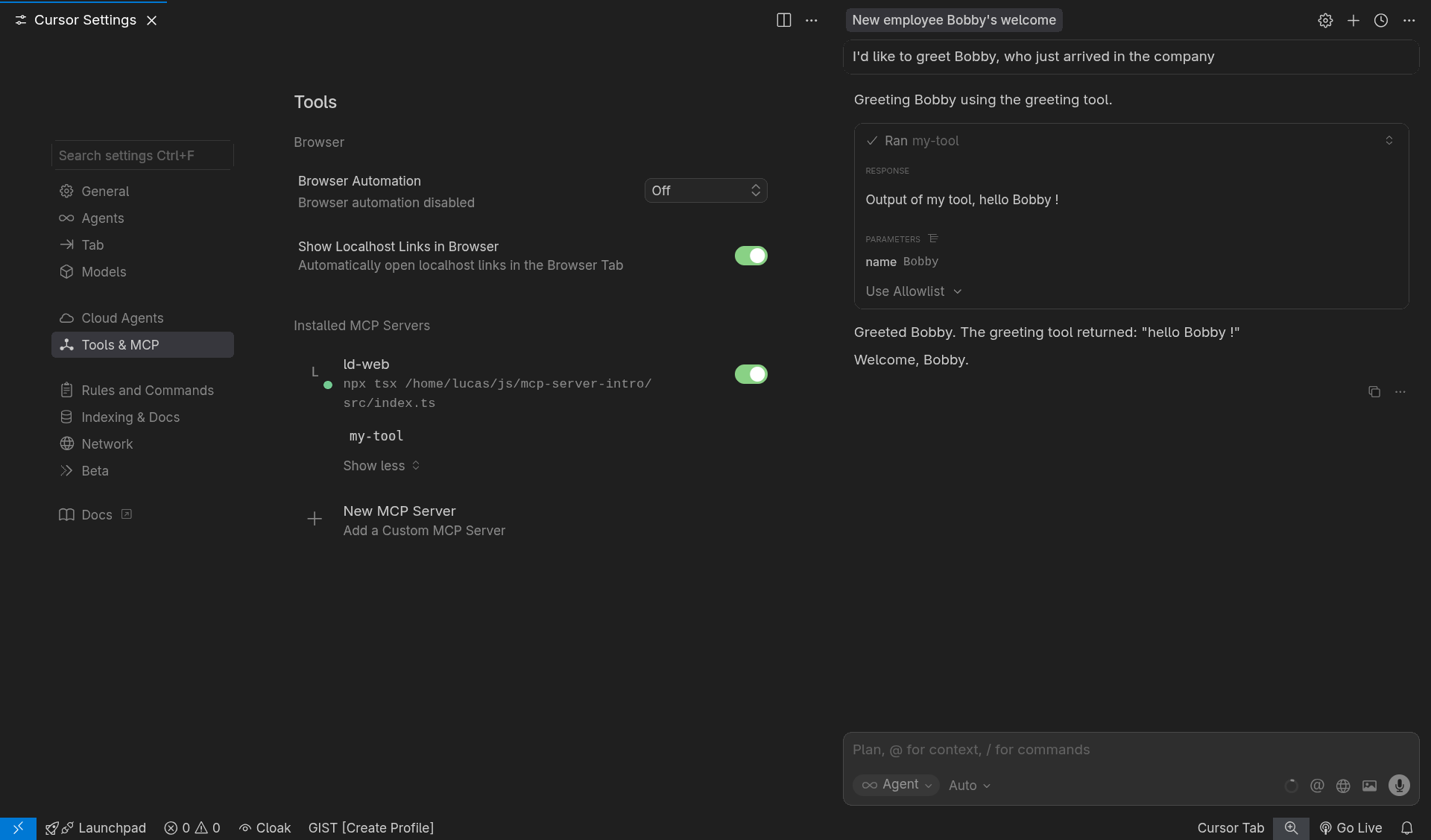
就像在前一張圖片中一樣,工具是使用「Bobby」參數執行的。在最後一張圖片(Cursor IDE)中,AI 代理從我們的提示中擷取「Bobby」名稱,並將其作為參數來呼叫 MCP 工具。因此,我們可以用自然語言與我們的工具互動。