Model Context Protocol (MCP) - AI talk to your application

The official documentation tells us MCP is an open-source standard that allows connecting AI applications with external systems.
It means that if you or your company have an MCP server, then an AI application can call it to retrieve (or write) data directly exposed by your system. This can allow users to perform actions (like searches) directly from their chat, while the LLM connects to external services.
We can then imagine a user who is looking for a hosting for their next trip, and the AI, as a consequence, connects to different MCP servers of various online services to retrieve and show the available options.
An MCP server exposes capabilities to its clients. The clients will then be able to call tools present on the server, but also retrieve data in read-only mode by calling resources.
To create an MCP server, we will use the Typescript SDK (Documentation).
Project
In a new folder:
npm init -y# Set the project type to use ES modulesnpm pkg set type="module"# Install dev dependenciesnpm i --save-dev tsx typescript @types/nodepackage.json
In package.json, add a script to execute the src/index.ts file:
{ "name": "mcp-server-intro", "version": "1.0.0", "description": "", "scripts": { "dev": "tsx src/index.ts" //... } //...}Typescript configuration
About tsconfig.json, we can either create it manually, or generate it with npx tsc --init, and then modify the content:
{  "compilerOptions": {    "module": "nodenext",    "target": "esnext",    "types": ["node"],
    "sourceMap": true,    "declaration": true,    "declarationMap": true,
    "noUncheckedIndexedAccess": true,    "exactOptionalPropertyTypes": true,
    "strict": true,    "jsx": "react-jsx",    "verbatimModuleSyntax": true,    "isolatedModules": true,    "noUncheckedSideEffectImports": true,    "moduleDetection": "force",    "skipLibCheck": true  }}
Typescript MCP SDK
To create our MCP server, we use the @modelcontextprotocol SDK:
npm i @modelcontextprotocol/sdkThen, we create the src/index.ts file: this is where we create the MCP server and the tools it will expose.
Server & Transport
In the SDK, we can find a McpServer class, we can therefore instantiate an object of this type. The constructor takes an object with useful properties: name, title, version, capabilities, and even instructions that describe the server’s features and how to use it.
In the main function, we will then create an StdioServerTransport Transport object. The STDIO transport allows using an MCP server locally: it uses the standard input/output (STDIO) between a client and a local MCP server. If we need an online server, that several clients could connect to, we would use an SSEServerTransport. This transport supports Server Sent Events (SSE), so it can send notifications to connected clients.
Then we connect the MCP server to the transport: await mcpServer.connect(transport).
Examples of implementations on the Github repository: examples
import { McpServer } from "@modelcontextprotocol/sdk/server/mcp.js";import { StdioServerTransport } from "@modelcontextprotocol/sdk/server/stdio.js";
const mcpServer = new McpServer(  {    name: "ld-web",    title: "LD-WEB",    version: "1.0.0",  },  {    instructions: "Fetch informations about web development",  },);
async function main() {  const transport = new StdioServerTransport();  await mcpServer.connect(transport);
  console.error("Server running...");}
main().catch((error) => {  console.error("Fatal error in main():", error);  process.exit(1);});
To launch the server, use the script that launches tsx with the src/index.ts file:
npm run devTools
In an MCP server, we can register tools and make them available to clients:
mcpServer.registerTool( // tool name "my-tool", // Discoverable properties { title: "My tool", description: "My first MCP tool !", }, // Tool's execution logic async () => { return { content: [{ type: "text", text: "Output of my tool !" }], }; },);MCP Inspector
To test the MCP server, we can use the MCP Inspector provided by the Model Context Protocol team on Github.
Launch
From the project root, without previously launching the MCP server, we execute the MCP inspector that will allow us to connect to the server, and then explore and execute its tools:
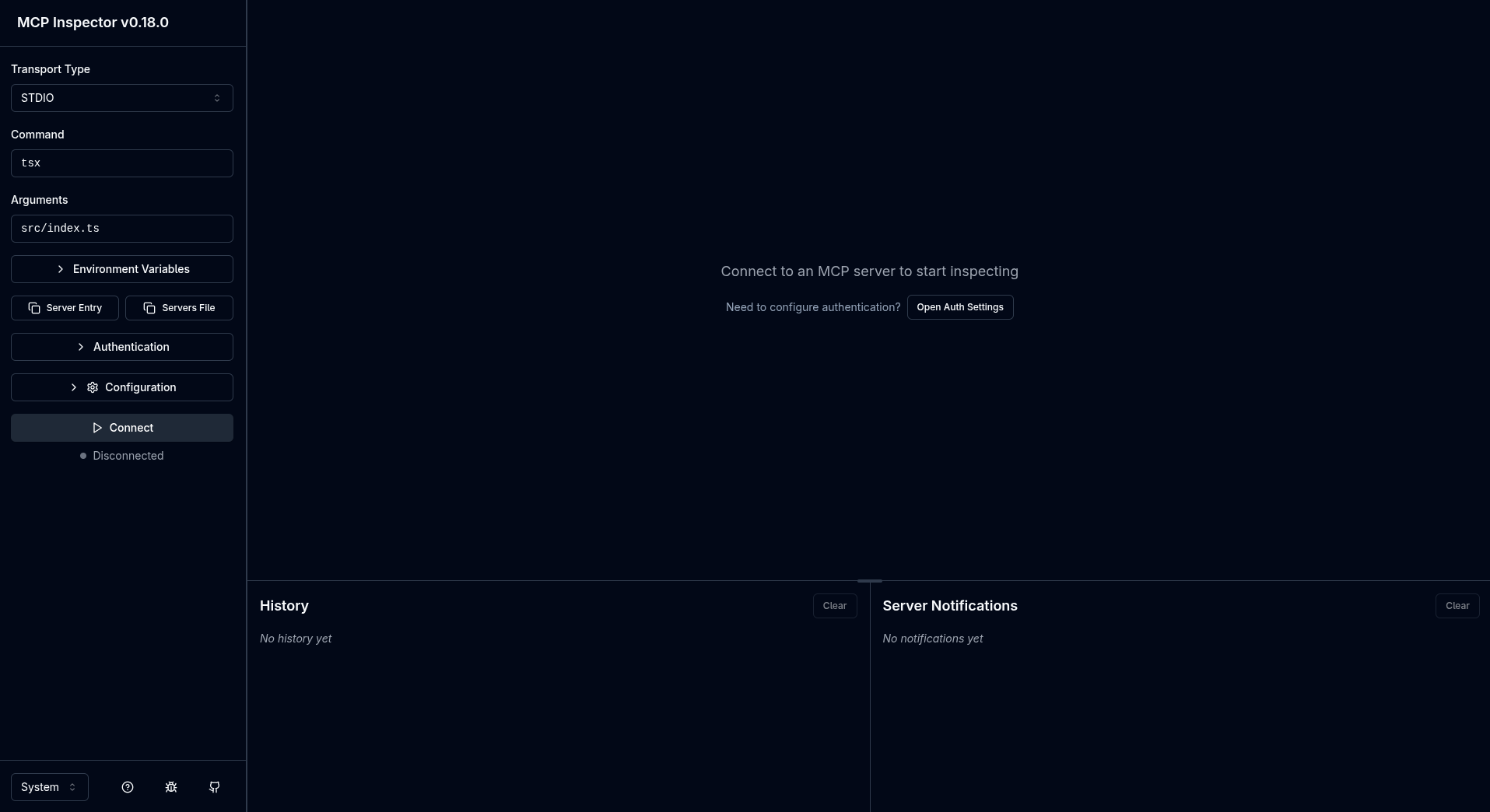
npx @modelcontextprotocol/inspector tsx src/index.tsThe command launches a web interface on port 6274:
Connection
On the left side of the interface, the tsx command and its src/index.ts argument are already pre-filled. The transport is defined to STDIO, we can click on “Connect”.
Automatically, the inspector places us on the “Tools” tab and indicates on the left side of the interface that we are connected to the “ld-web” server:
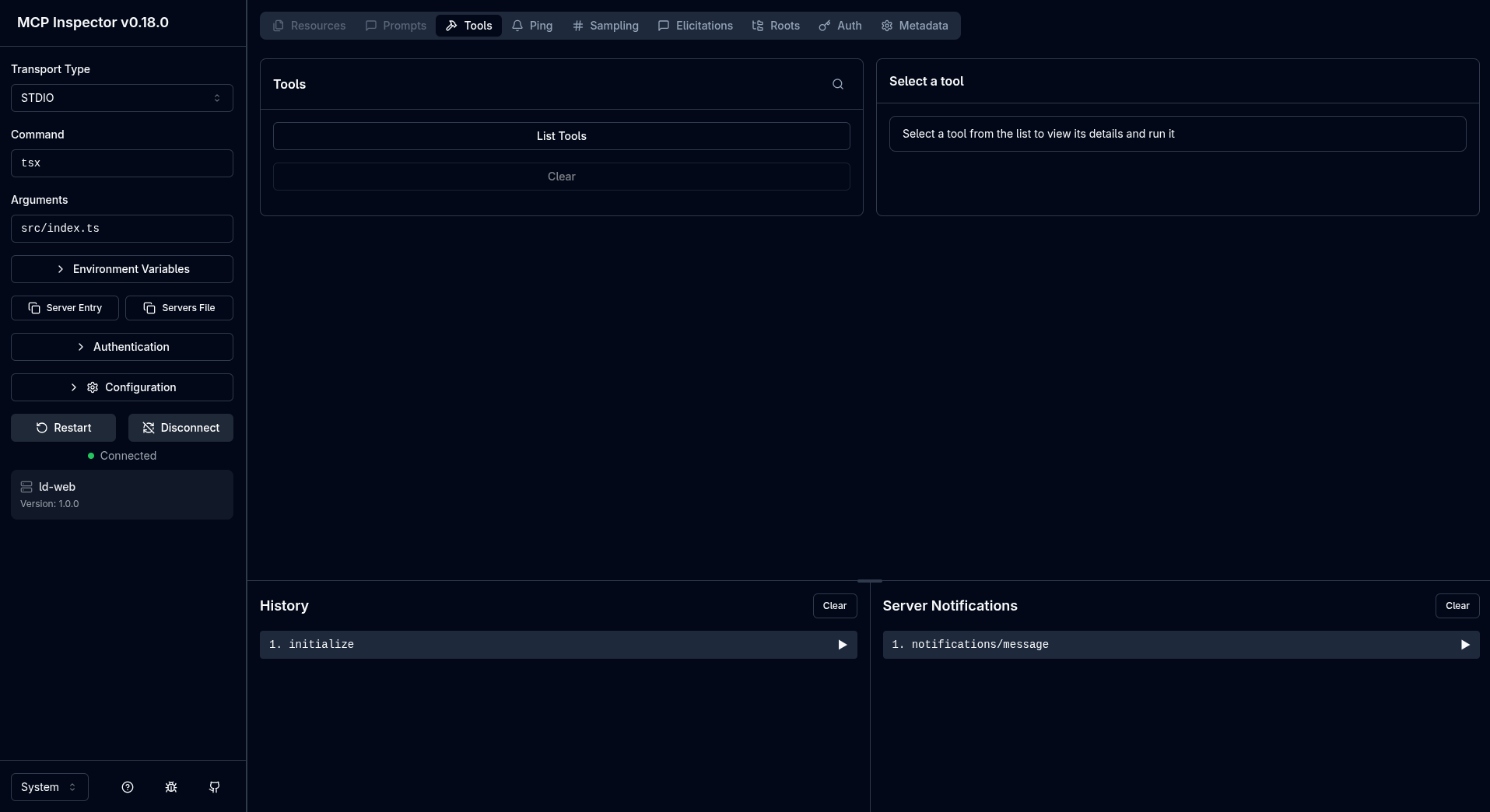
Informations have been retrieved from a first exchange with the server. In the history (at the bottom, a bit on the left, “History”), we find an initialize element, which, if we expand it by clicking on it, shows that the inspector made an “initialize” request, and the server answered by providing details about itself.
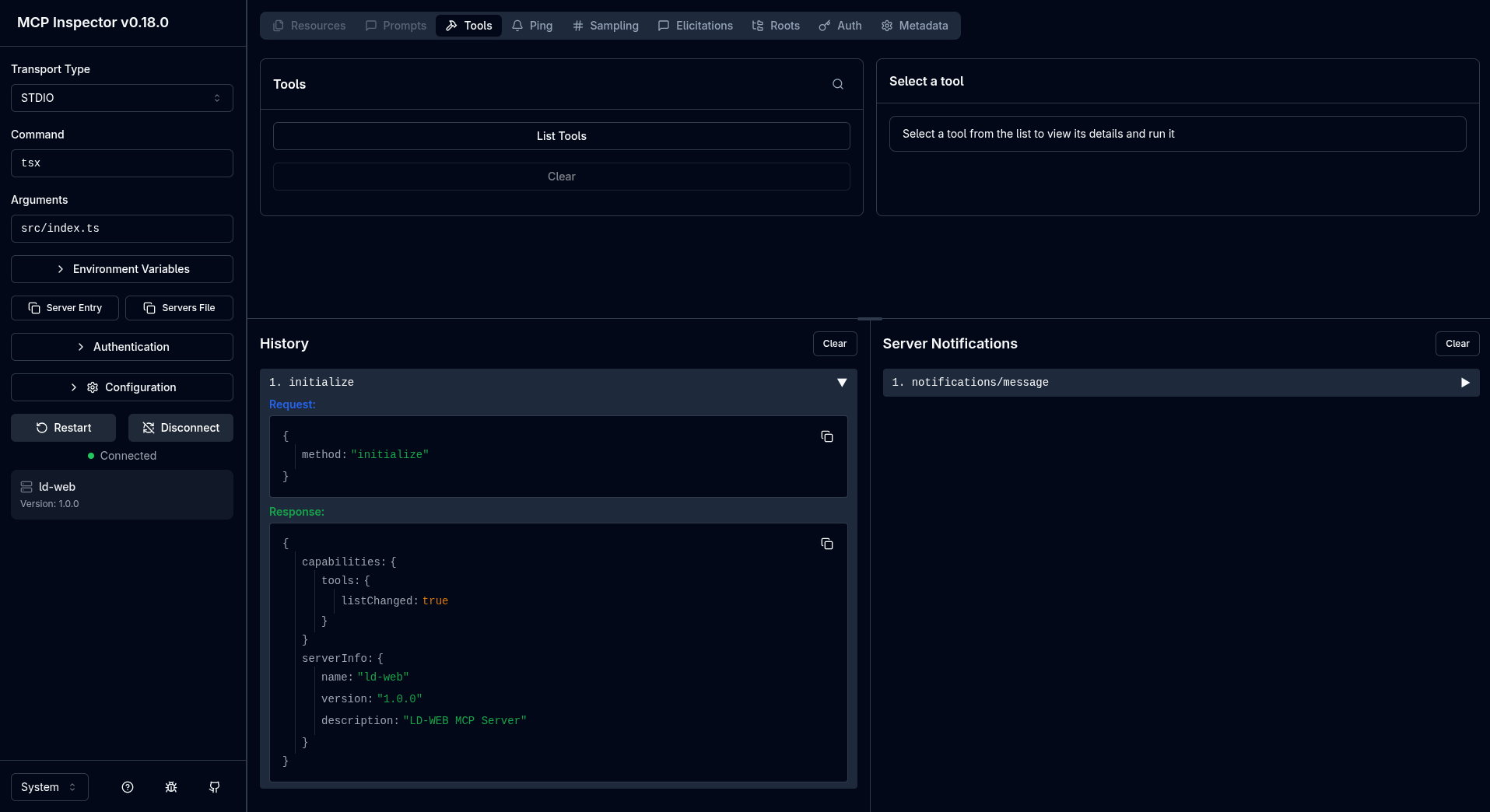
This initialization request is actually the first of the exchange lifecycle defined by the MCP protocol.
Tool execution
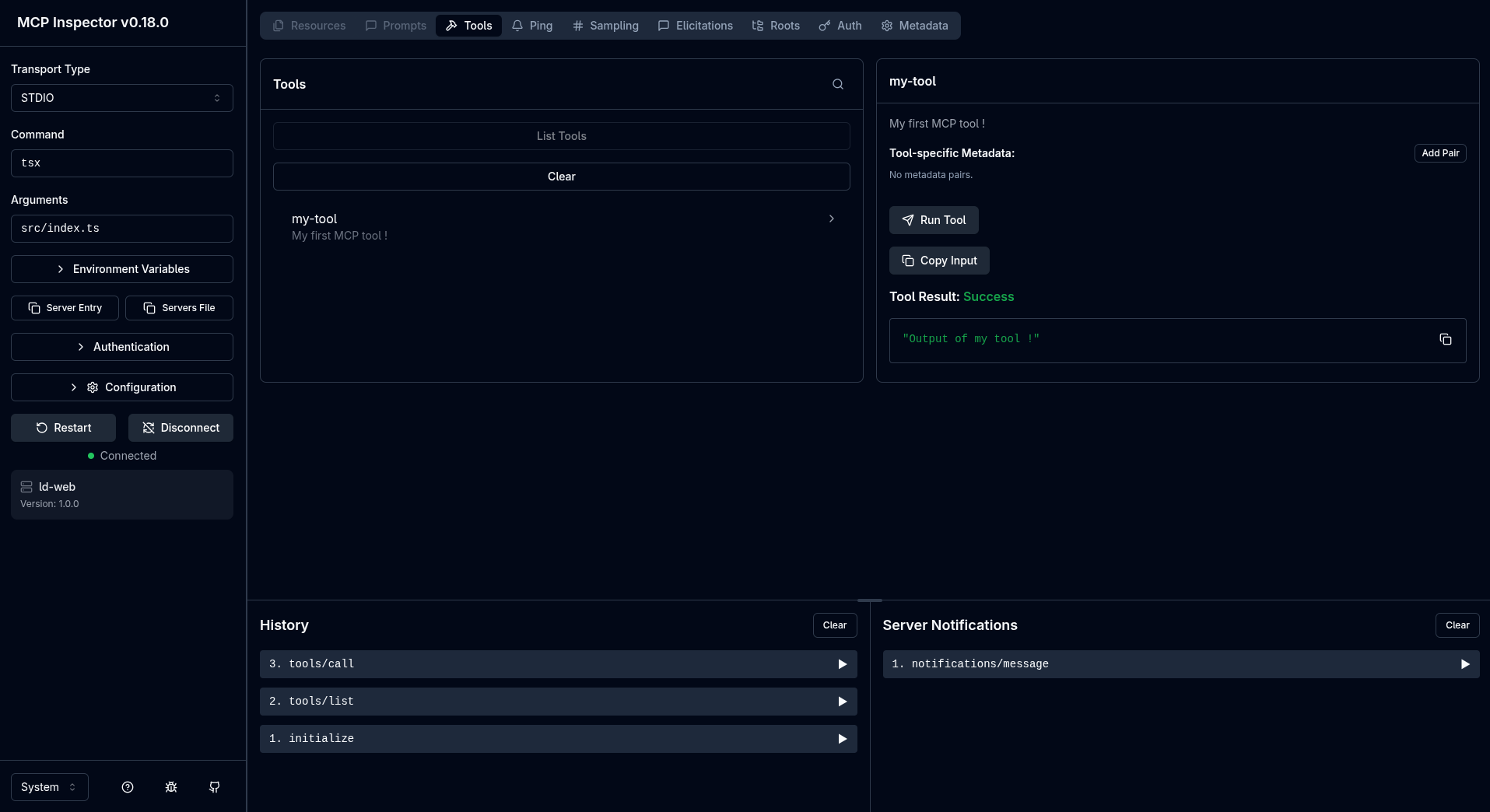
Now that we are connected, we will execute the tool that we have registered for our server. The goal is to receive the Output of my tool ! message on the client side.
We can list the tools by clicking on the “List tools” button:
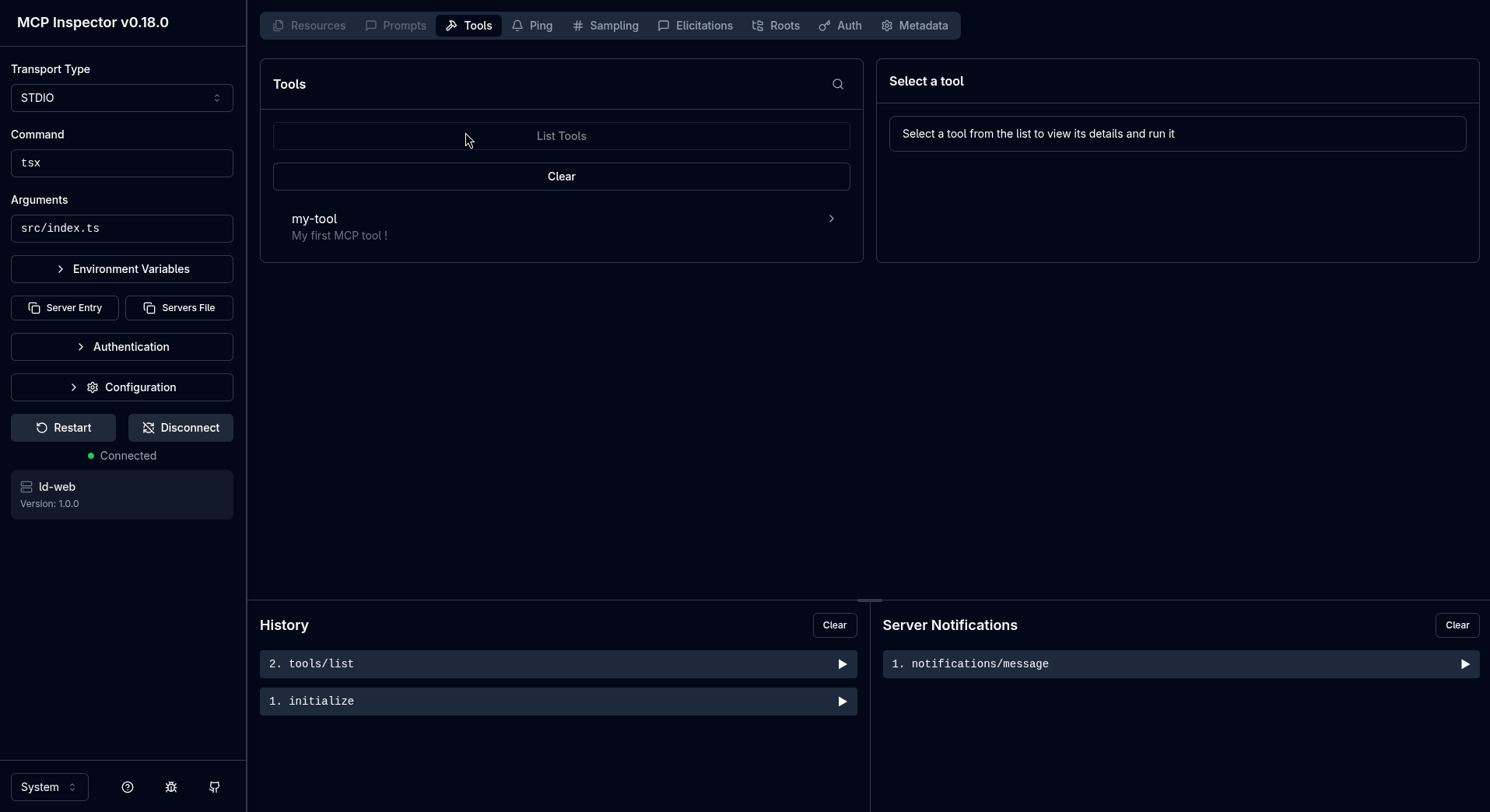
In the tools list, we find our tool “my-tool” with its description as we have registered it into the source code.
We then click the tool, and then the “Run tool” button: we get the tool’s execution result on the client side:
Arguments
It is possible to pass arguments to the tool. To do this, in the code, we will add the inputSchema property to the tool’s declaration.
The schema will be compatible with the zod validation library:
mcpServer.registerTool( "my-tool", { title: "My tool", description: "My first MCP tool !", inputSchema: { name: z.string().describe("Name of the person to greet !"), }, }, async ({ name }) => { if (!name) { throw new Error("Name is required"); } return { content: [{ type: "text", text: `Output of my tool, hello ${name} !` }], }; },);In the function, we retrieve the parameter defined in the inputSchema property: we can now use an argument provided by a client.
In the MCP inspector:
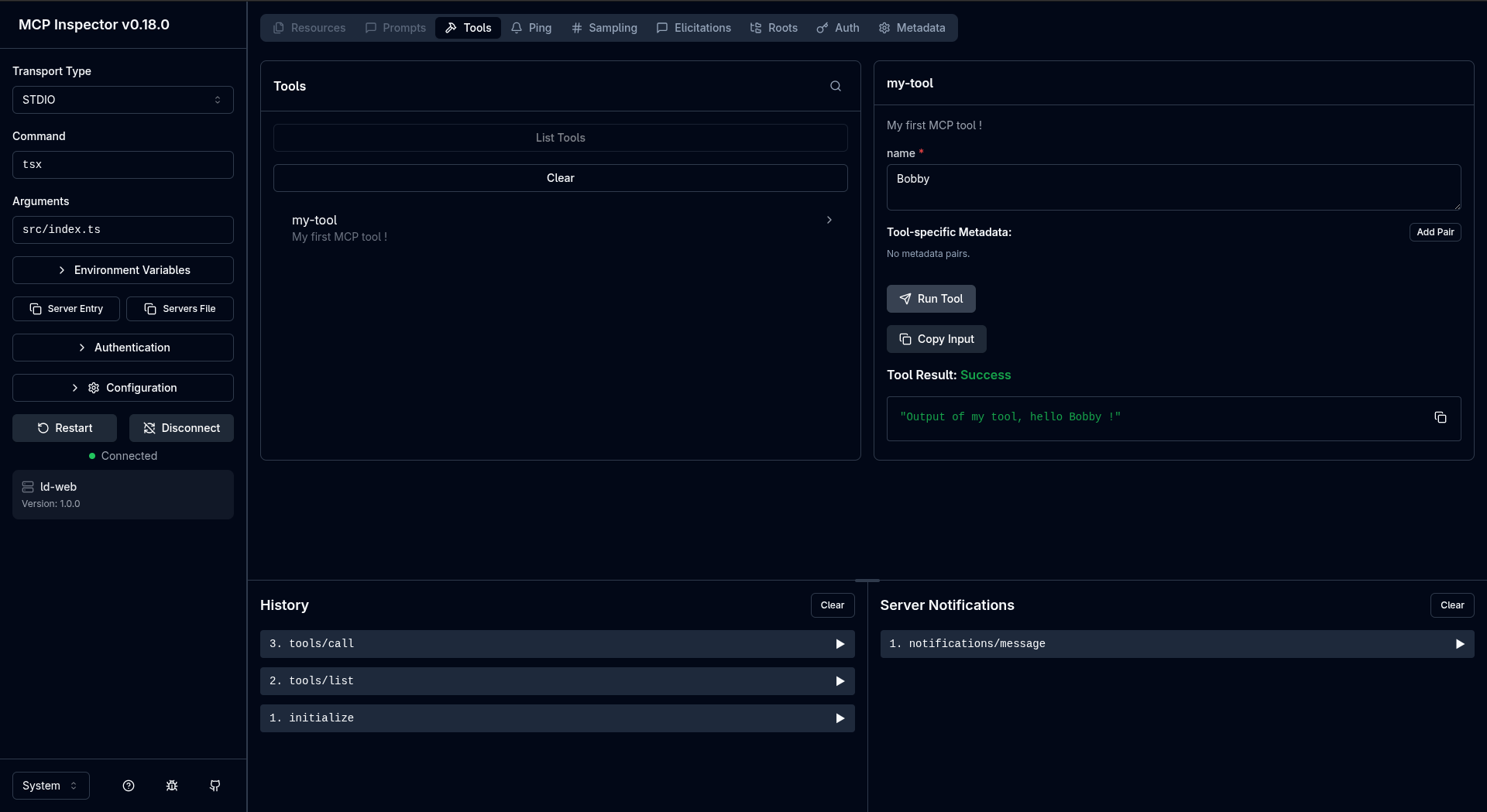
Our tool could do much more than just say hello to a name passed as a parameter: communication with a database (read and/or write), API calls, file system access…
Cursor integration
In an IDE like Cursor, we can configure a new MCP server that points to our local file. In the configuration, section “Tools & MCP”, we can add a new custom MCP server:
{ "mcpServers": { "ld-web": { "type": "stdio", "command": "npx", "args": ["tsx", "/home/lucas/js/mcp-server-intro/src/index.ts"] } }}Once the MCP server is configured and enabled, the IDE will be able to invoke it directly during our exchanges with the chat:
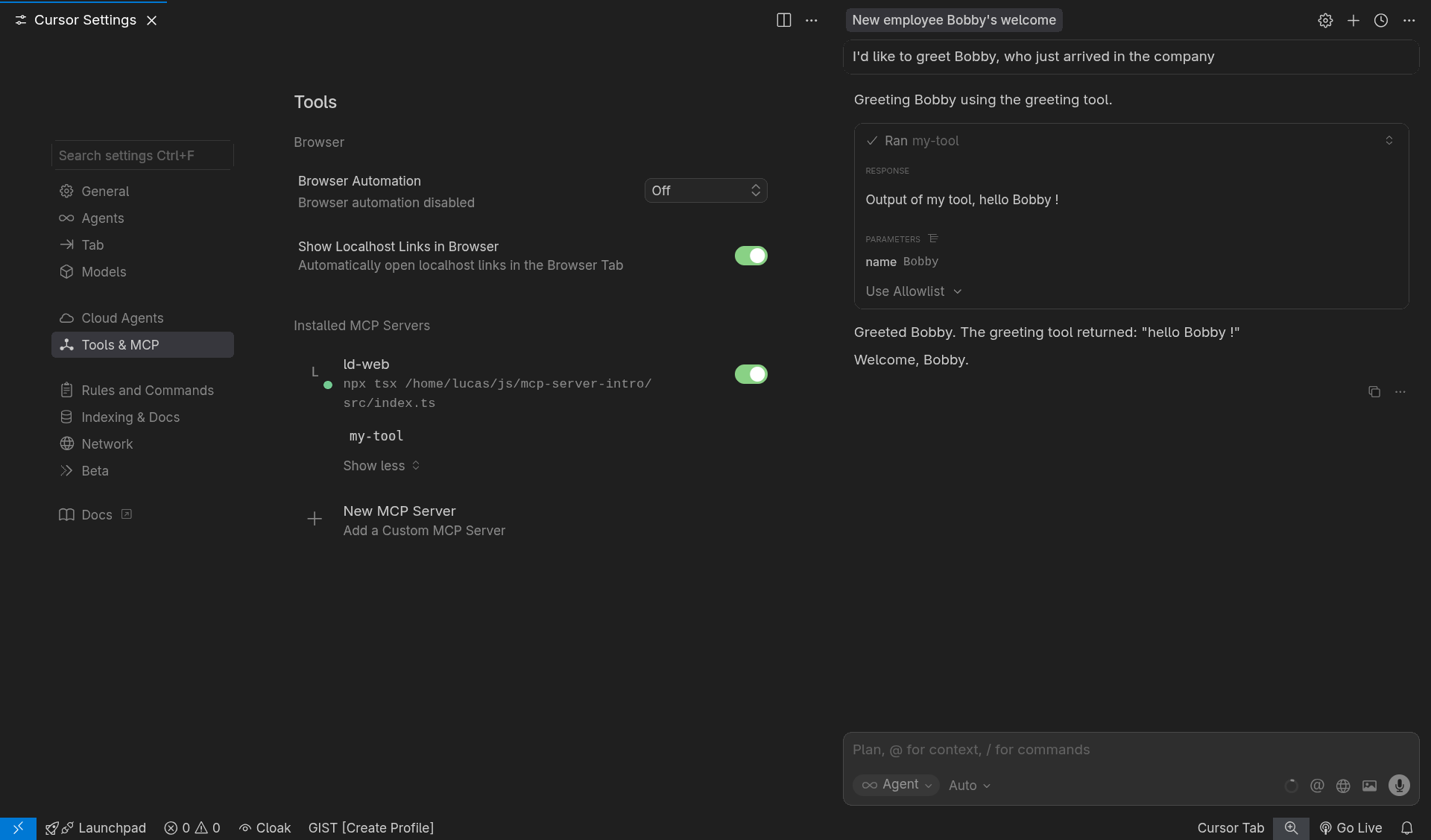
Just like in the previous image, the tool was executed with the “Bobby” parameter. In the last image (Cursor IDE), the AI agent extracts the “Bobby” name from our prompt, and uses it as an argument to invoke the MCP tool. Thus, we can interact with our tools in natural language.